StartFragment
Customers do not enjoy waiting to see a menu, place another drinks order or ask for the bill.
Your restaurant team does not enjoy rushing between tables, rewriting orders and correcting mistakes during the busiest part of the day.
QR and NFC table orderingcan make this process easier for both sides.
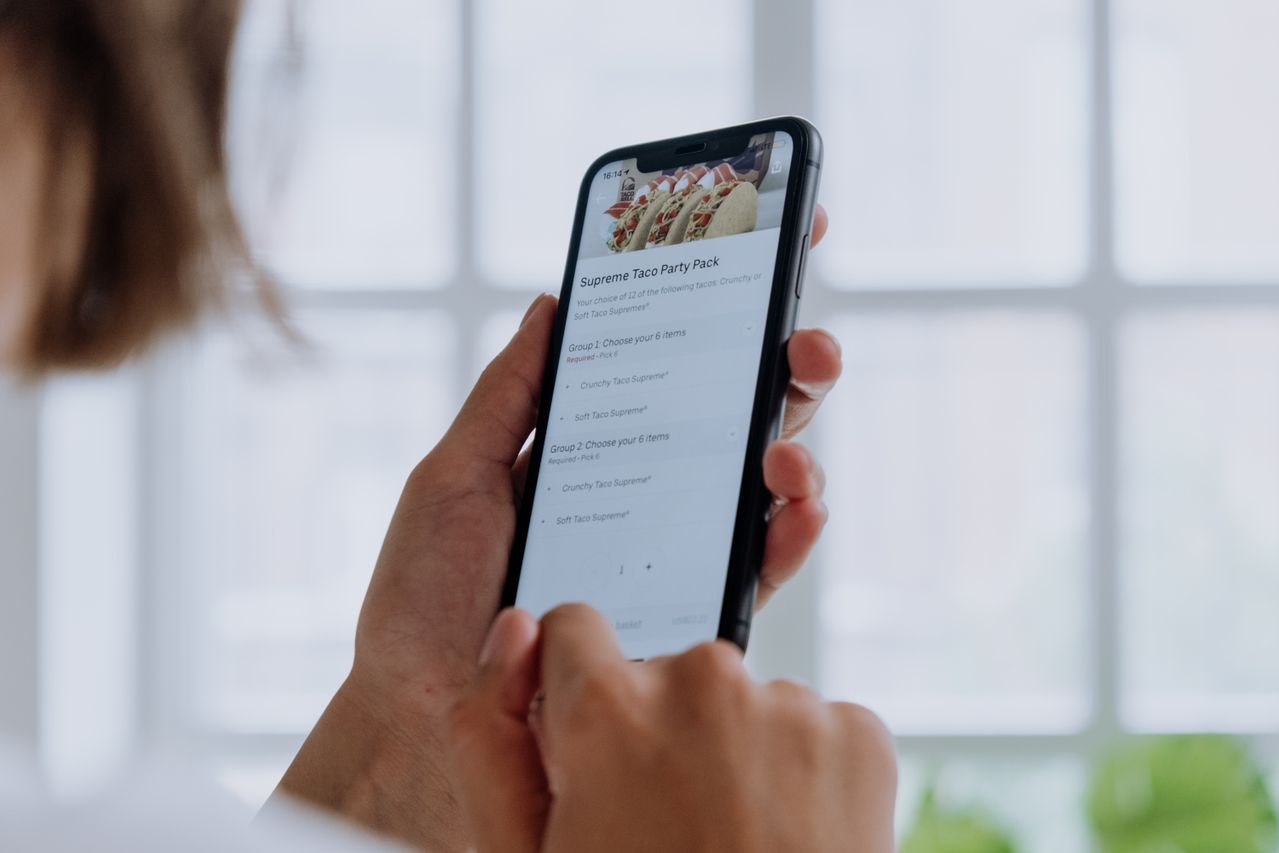
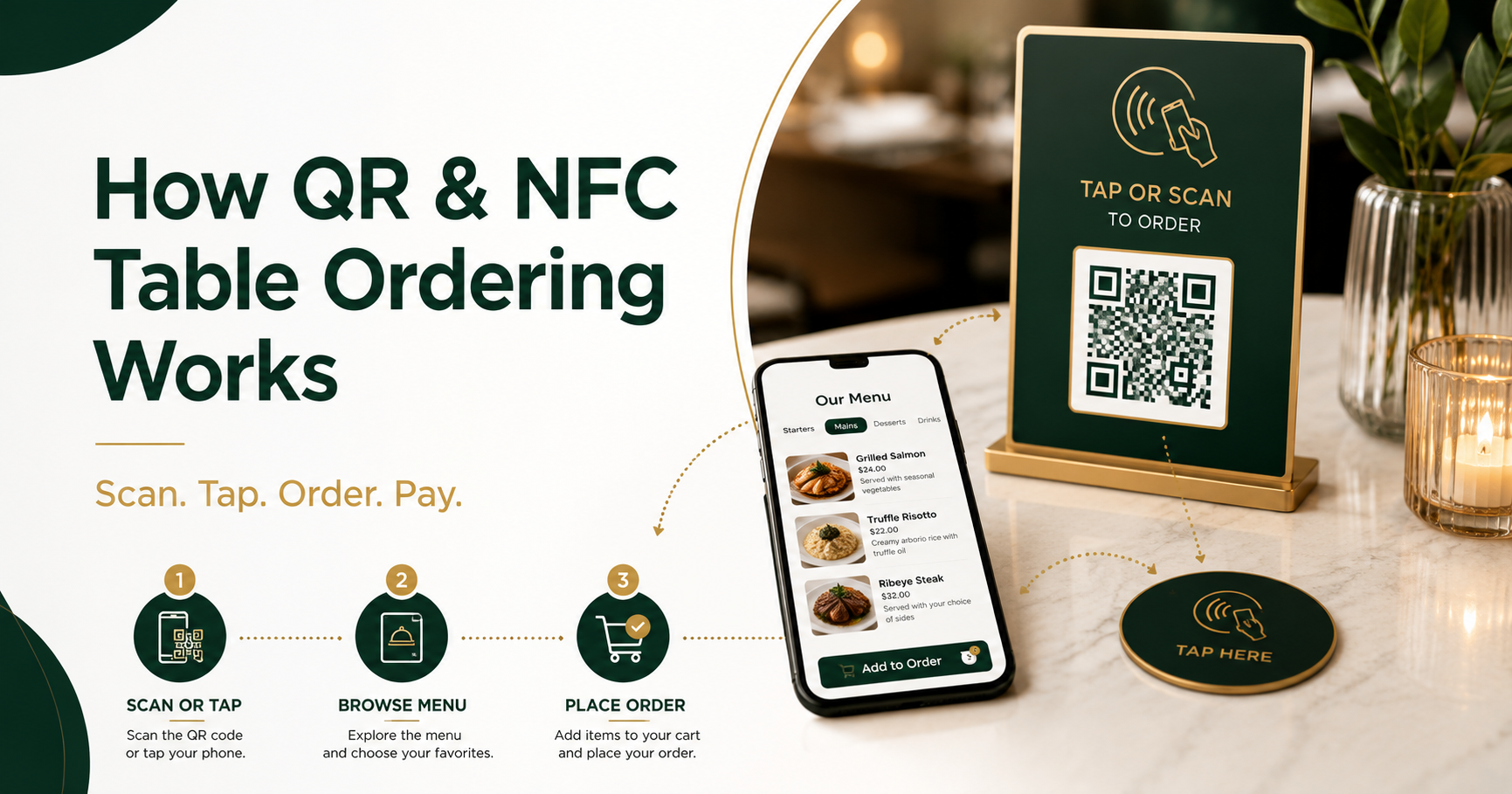
Customers scan a QR code or tap an NFC tag placed on their table. Your restaurant’s digital menu opens on their phone. They can browse, customise their food, place an order and pay without downloading an app.
The order is then connected to the correct table and sent to the restaurant’s ordering or kitchen system.
This does not mean removing waiters or replacing hospitality with screens. It means giving customers another convenient way to order while allowing staff to spend more time serving food, answering questions and looking after guests.
This guide explains how QR and NFC table ordering works, how the two technologies differ and what restaurants should consider before introducing them.
What Is QR Table Ordering?
QR table ordering allows customers to open a restaurant’s digital menu by scanning a QR code with their smartphone camera.
QR stands for Quick Response.
A QR code is a square image that contains digital information, usually a web address. When customers scan it, their phone opens the restaurant’s ordering page in a web browser.
The QR code can be printed on:
- A table stand
- A menu
- A sticker
- A receipt
- A table number
- A coaster
- A counter display
Each table can have a different QR code. This allows the ordering system to identify where the order should be delivered.
For example, a customer sitting at Table 12 scans the code. The ordering page opens with Table 12 already selected. When the customer submits the order, the kitchen and service team can see that it belongs to Table 12.
No separate app is required when the system uses a browser-based ordering page.
What Is NFC Table Ordering?
NFC stands for Near Field Communication.
It is a short-range wireless technology that allows a smartphone to exchange small amounts of information with a nearby NFC tag.The NFC Forum states that NFC normally works over a very short distance and is designed around a simple tap-based experience. NFC tags can also operate without their own battery because power can be supplied through the connecting device.
For restaurant ordering, a small NFC tag is placed on the table.
The customer holds their phone near the tag. The phone detects the stored web address and opens the restaurant’s digital menu.
There is no need to:
- Open the phone camera
- Position a QR code correctly
- Type a website address
- Download a restaurant app
- Connect the phone manually
The customer taps and the menu opens.
OrderApps allows restaurants to place QR codes and NFC tags together on the same table display. Customers can then use whichever method feels more familiar.
QR Ordering vs NFC Ordering
QR and NFC ordering usually lead customers to the same digital menu. The main difference is how they open it.
QR table ordering
The customer:
- Opens the smartphone camera.
- Points it at the QR code.
- Taps the link shown on the screen.
- Opens the restaurant menu.
NFC table ordering
The customer:
- Holds the phone near the NFC tag.
- Taps the notification that appears.
- Opens the restaurant menu.
QR codes are widely recognised and inexpensive to print. NFC can feel faster because the customer does not need to open the camera or align the phone with a printed code.
Using both methods gives customers more choice and provides a backup if one method is not working correctly.
How QR and NFC Table Ordering Works Step by Step
A complete table-ordering process normally follows these steps.
Step 1: The Customer Sits at a Table
Each table has a unique table number.
A table display contains:
- A QR code
- An NFC tag
- A short instruction
- The restaurant’s branding
- A visible table number
- An alternative way to request service
The instruction could say:
Scan or tap to view our menu, order and pay.
Clear instructions are important because not every customer will have used table ordering before.
Step 2: The Customer Scans or Taps
The customer scans the QR code or taps the NFC tag.
Both methods open the restaurant’s branded ordering page.
With OrderApps, customers do not need to download an app. The menu opens directly on a compatible smartphone.
The system can recognise the table automatically because the QR code or NFC tag is connected to a specific table number.
Step 3: The Digital Menu Opens
The customer can browse the restaurant’s menu from their phone.
A good digital menu should display:
- Menu categories
- Product names
- Clear descriptions
- Prices
- Food photographs
- Available options
- Add-ons
- Allergen information
- Dietary labels
- Sold-out items
- Special offers
Customers should be able to move between categories without repeatedly loading new pages.
The menu also needs to work well on different screen sizes.
Step 4: The Customer Customises the Order
The customer selects food and drinks and chooses any available options.
For example, someone ordering a burger might select:
- Cooking preference
- Cheese
- Extra toppings
- Sauce
- Side dish
- Drink
- Allergen requests
The ordering system should clearly show which choices are required and which cost extra.
This can reduce misunderstandings because customers select the options themselves.
However, restaurants must still make it easy for customers to ask staff about allergies, ingredients or special requirements. Digital forms should never replace a direct conversation when food safety is involved.
Step 5: The System Suggests Relevant Extras
A table-ordering system can display relevant additions before checkout.
For example:
- Add chips to your burger
- Add garlic bread
- Make it a meal
- Add another drink
- View today’s dessert
- Upgrade to a larger portion
These suggestions can help customers discover items they might otherwise miss.
OrderApps supports menu add-ons, meal deals and suggested items within its table-ordering experience.
The offers should remain useful and relevant. Too many pop-ups can make ordering frustrating.
Step 6: The Customer Reviews the Order
Before submitting, the customer should see:
- Selected items
- Quantities
- Customisations
- Item prices
- Service charges
- Discounts
- Taxes where applicable
- Total cost
- Table number
There should be a simple way to edit or remove an item.
The table number should normally be set automatically rather than asking customers to enter it manually. This reduces the risk of food being sent to the wrong place.
Step 7: The Customer Pays
Depending on the restaurant’s setup, customers may:
- Pay immediately online
- Add items to an open table bill
- Pay after the meal
- Split the bill
- Request payment from a member of staff
OrderApps promotes order-and-pay-at-table functionality, including the ability to split bills and pay without queueing at the till.
The restaurant should clearly explain when payment is taken. Customers should not be unsure whether the order has been paid for or merely submitted.
Step 8: The Order Reaches the Restaurant
After the order is confirmed, it enters the restaurant’s ordering system.
The order should include:
- Order number
- Table number
- Ordered items
- Product options
- Special notes
- Payment status
- Order time
OrderApps states that table orders are tagged with the relevant table number and sent directly to the kitchen workflow.
Depending on the setup, the order may appear on a screen, print in the kitchen or enter a point-of-sale system.
Step 9: Staff Prepare and Serve the Order
Kitchen staff prepare the items in the same way they would handle an order taken by a waiter.
The service team then delivers the food or drinks to the table shown on the order.
Staff can focus on:
- Welcoming customers
- Answering menu questions
- Checking satisfaction
- Serving food
- Clearing tables
- Handling special requests
- Supporting customers who do not want to order digitally
Technology manages the repetitive order-entry process. People continue providing hospitality.
Step 10: Customers Can Reorder
Customers may want another drink, an extra side or dessert after the first order.
With digital table ordering, they can reopen the menu and place an additional order without waiting to catch a waiter’s attention.
OrderApps presents this as one of the main benefits of the system because guests can reorder drinks and extras when they are ready.
This can be particularly useful in:
- Pubs
- Bars
- Busy cafés
- Food halls
- Casual restaurants
- Hotel lounges
- Large outdoor dining areas
What Equipment Does a Restaurant Need?
A QR and NFC table-ordering setup does not normally require complicated customer hardware.
Restaurants generally need:
- QR codes for each table
- NFC tags for each table
- Printed table stands or stickers
- A mobile-friendly digital menu
- A reliable internet connection
- A restaurant order-management system
- A kitchen screen or printer
- A supported payment setup
QR codes can be printed, while NFC tags are small physical chips programmed with the menu address.
OrderApps describes its NFC discs as durable, wipe-clean tags connected to individual table numbers. It also allows restaurants to use a QR code and NFC tag on the same table display.
Benefits of QR and NFC Table Ordering
Faster Ordering
Customers can place an order as soon as they are ready.
They do not need to wait for someone to:
- Bring a menu
- Return to take the order
- Bring the card machine
- Print the bill
This can reduce delays during busy periods.
Easier Reordering
Customers can order another drink or side without finding a member of staff.
This can make the experience more convenient, especially in busy venues or large dining areas.
Improved Order Accuracy
Customers choose their items and options directly.
This can reduce mistakes caused by:
- Misheard orders
- Unclear handwriting
- Forgotten customisations
- Incorrect table numbers
- Manual re-entry
Staff should still review unusual notes and allergy-related requests carefully.
More Time for Hospitality
Table ordering can reduce repetitive order-taking work.
It gives staff more time to welcome guests, explain dishes, deliver food and solve problems.
OrderApps describes its system as a way for restaurants to serve more tables while allowing the existing team to focus on food and hospitality.
Consistent Menu Information
A connected system can use the same menu across table ordering, takeaway, delivery and mobile apps.
OrderApps states that restaurants can update a menu once and apply the changes across its table, online and app channels.
This can reduce duplicated work and inconsistent pricing.
Easier Menu Updates
A digital menu can be updated without printing a completely new menu.
Restaurants can change:
- Prices
- Descriptions
- Product availability
- Photographs
- Offers
- Add-ons
- Opening times
Sold-out products can be hidden or marked unavailable.
Better Reporting
A connected ordering platform can bring dine-in and online sales into the same reporting area.
Restaurants can use this data to understand:
- Popular dishes
- Busy ordering times
- Average order values
- Frequently selected extras
- Sales by table
- Dine-in versus takeaway performance
OrderApps states that its table-ordering sales can be viewed alongside online orders in its reporting and analytics system.
Loyalty and Repeat Visits
Customers can potentially earn loyalty points or access offers when ordering at the table.
OrderApps connects table ordering with its wider loyalty and promotional tools, allowing participating customers to use rewards during dine-in orders.
Marketing consent should always be handled clearly and lawfully.
Possible Disadvantages and Challenges
QR and NFC ordering is not suitable as the only service option for every customer.
Restaurants should plan for the following issues.
Some Customers Prefer Human Service
Some guests enjoy speaking to staff and asking for recommendations.
Others may not feel confident using digital ordering.
Your restaurant should continue offering staff-assisted ordering.
Not Everyone Has a Suitable Smartphone
A customer may:
- Not own a smartphone
- Have a low battery
- Have no mobile data
- Have NFC disabled
- Have difficulty scanning
- Need accessibility support
- Prefer not to use a personal device
Public-sector accessibility guidance recommends not relying on a QR code alone and providing a visible alternative, such as a short URL or another way to complete the task.
In a restaurant, the most practical alternative is usually traditional staff ordering.
Poor Internet Can Cause Problems
A slow restaurant network or weak mobile signal can make the menu difficult to load.
The ordering page should be lightweight and mobile-friendly.
Restaurants should test it throughout the venue, including outdoor areas and lower floors.
Customers May Have Security Concerns
Some customers worry that QR codes may direct them to unsafe websites.
The UK National Cyber Security Centre says QR codes used in pubs and restaurants are generally likely to be safe, although users should remain cautious about suspicious links and requests for excessive information.
Restaurants can increase trust by:
- Using branded table displays
- Showing the official website domain
- Inspecting codes regularly
- Removing unauthorised stickers
- Using secure HTTPS pages
- Explaining what the code opens
- Avoiding unnecessary personal-data requests
Staff Still Need Training
Digital ordering does not remove the need for good processes.
Staff need to understand:
- How orders appear
- How to identify the table
- How to handle duplicate orders
- How refunds work
- How to assist customers
- What to do if the system is unavailable
- How to manage allergies
- How to close or split bills
A system is only effective when the restaurant team knows how to use it.
How to Make QR Codes Easy to Scan
A QR code must be designed and positioned correctly.
Good practice includes:
- Using strong colour contrast
- Leaving clear space around the code
- Avoiding patterned backgrounds
- Keeping the code flat
- Making it large enough
- Avoiding excessive decoration
- Testing on several phones
- Clearly explaining its purpose
Accessibility guidance also recommends including a short alternative address and not stretching, skewing or distorting QR codes.
Place the code somewhere customers can reach without moving plates or leaning across the table.
How to Position an NFC Tag
An NFC tag should be placed where customers can easily tap it.
Use a recognised tap symbol and clear wording such as:
Tap your phone here to order.
Avoid placing the tag:
- Directly beside metal where it may not work reliably
- Under thick materials
- Where drinks regularly spill
- Where customers cannot reach it
- Without any explanation
The NFC Forum provides wayfinding marks designed to show users where to tap an NFC-enabled object.
Test each tag after installation.
Should You Use QR, NFC or Both?
For most restaurants, using both is the strongest option.
QR codes are familiar and work through the phone camera.
NFC offers a quick tap-based experience.
Together, they provide:
- More customer choice
- A backup access method
- Greater device compatibility
- A more modern experience
- Less reliance on one technology
A table display can include a QR code in the centre and a clearly marked NFC tap area beside it.
Customers choose the method they understand.
How to Introduce Table Ordering Without Damaging Hospitality
The system should support service, not become a barrier between customers and staff.
A balanced approach works best.
Welcome customers personally
A member of staff should still greet guests and explain how ordering works.
Give customers a choice
Say:
“You can scan or tap to order whenever you are ready, or we can take your order at the table.”
Keep staff visible
Customers should not feel abandoned after placing an order.
Staff should continue checking tables and offering assistance.
Make allergy support obvious
Add clear wording telling customers to speak to staff about allergies or dietary concerns.
Test during quieter periods
Start with a small number of tables or a limited service period.
Fix operational problems before using the system across the entire restaurant.
Gather feedback
Ask customers and staff:
- Was the menu easy to open?
- Was ordering clear?
- Did the payment work?
- Did the kitchen receive the order correctly?
- Was traditional assistance available?
- What caused confusion?
Use this feedback to improve the process.
How OrderApps QR and NFC Table Ordering Works
OrderApps provides QR and NFC table ordering as part of its wider restaurant platform.
Guests can:
- Scan the QR code or tap the NFC tag.
- Open the restaurant’s branded menu.
- Browse food and drinks.
- Choose customisations and extras.
- Place the order.
- Pay from their phone.
- Send the order to the correct table and kitchen workflow.
No customer app download is required. Orders are tagged with the relevant table number, and the same menu can be used across the restaurant’s website, mobile app and table-ordering system.
OrderApps also connects table ordering with:
- Online delivery and collection
- Branded mobile apps
- Table reservations
- Built-in point of sale
- Loyalty rewards
- Promotions
- Sales reporting
- Automated marketing
As of July 2026, QR and NFC table ordering is included in the OrderApps Premium plan. The published price is £39.99 per month with a 1.49% transaction charge per order. Restaurants should confirm the full current setup and payment costs before subscribing.
Questions to Ask Before Choosing a Table-Ordering System
Before committing to a provider, ask:
- Does it support both QR and NFC?
- Does each order include the correct table number?
- Do customers need to download an app?
- Can customers pay at the table?
- Can bills be split?
- How are refunds handled?
- Can staff place orders manually?
- Does it work with the current kitchen workflow?
- Can the menu be updated instantly?
- Can sold-out items be removed?
- Does it support modifiers and add-ons?
- How are allergies and dietary information shown?
- What happens if the internet fails?
- What monthly and transaction charges apply?
- Who owns the customer data?
- What support is available?
- Can dine-in and online orders be viewed together?
- Can it support more than one location?
The answers will help you compare systems based on daily restaurant operations rather than marketing claims alone.
Final Thoughts
QR and NFC table ordering gives customers a faster way to browse menus, place orders, reorder and pay from their phones.
QR codes use the smartphone camera. NFC tags use a short-range tap. Both can open the same digital restaurant menu without requiring an app download.
The technology can reduce waiting, improve order accuracy and make reordering easier. It can also give staff more time to focus on hospitality.
However, it should not become the only way to receive service.
The best restaurant table-ordering system combines digital convenience with visible, helpful staff. Customers should be free to scan, tap or speak to a person.
When that balance is handled well, QR and NFC ordering can improve operations without making the dining experience feel less personal.
Bring QR and NFC Ordering to Your Restaurant
OrderApps helps UK restaurants create a connected dine-in experience with branded QR and NFC table ordering.
Let guests scan or tap, browse your menu, order and pay from their phone while each order reaches the correct table and kitchen workflow.
Explore OrderApps table ordering or request a free demonstration to see how it could work in your restaurant.
EndFragment
Ready to grow your food business?
Online ordering system, a branded restaurant ordering app, table booking and EPOS on one platform, with plans from £19/month.