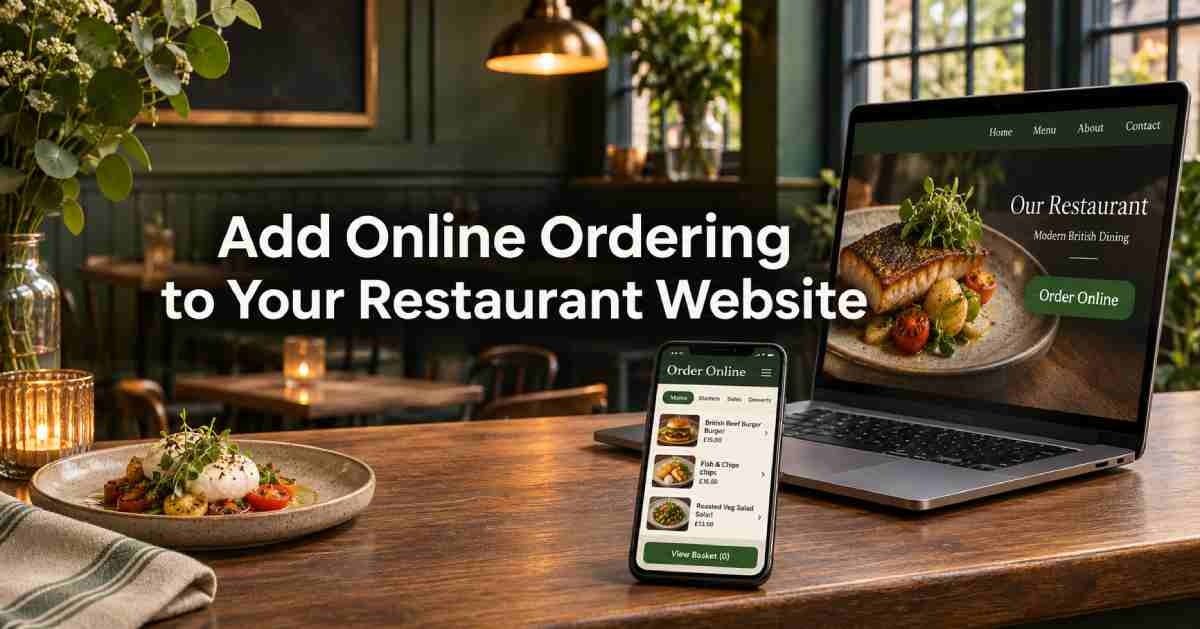
To add online ordering to an existing restaurant website, publish an ordering page with your menu, payment and fulfilment options.Add an Order Online button that links to it from your homepage, navigation and menu page. Then place a test order on a phone and follow it through to your kitchen before sending customers there.
A hosted ordering page is often the simplest setup. Your current website keeps its address and continues to handle menus, bookings and location information. The new button takes customers to a checkout built for delivery or collection. An ordering page can live on a provider-hosted address or a branded subdomain where supported.
Choose How Ordering Will Connect to Your Website
Start by deciding where customers will browse, build their basket and pay. That decision determines how much work your website developer needs to do.
SetupHow it worksWhen to choose itLink to a hosted ordering pageYour Order Online button opens the ordering provider’s published pageYou want to launch with a small change to your existing siteLink to a branded subdomainThe button opens an address such as order.yourrestaurant.co.ukYour provider supports custom domains and you want customers to see your restaurant’s domainUse a supported embed or pluginYour provider’s integration displays part or all of the ordering journey within an existing pageYour website and provider support the integration, and you can test the full checkout on mobile
A branded subdomain can still point to a hosted ordering page. It changes the address customers see. Ask your provider who sets up the DNS record and confirms that HTTPS works before you publish the link. Some providers document custom subdomains as an option for adding ordering to an existing site.
If you’re considering an embed, ask where payment takes place and what happens if the embedded menu fails to load. Use the provider’s supported integration and test it in the browsers your customers use.
Build the Ordering Page Before Adding the Button
Start with the menu you can reliably fulfil online. Check item names, prices and required choices such as pizza sizes, sides and sauces. Review meal deals carefully. A deal that lets customers skip a required choice can leave staff calling them back during service.
Configure each fulfilment option separately:
- Collection: Set collection hours, preparation lead times and handover instructions. Enable scheduled collection only for times your team can serve.
- Delivery: Configure coverage, applicable fees, minimum order rules and delivery hours. Test addresses inside and outside the service area.
- Payments: Enable the payment methods you intend to accept. Confirm what customers see after a successful or unsuccessful payment.
- Order handling: Decide where each order arrives, who checks it and how it reaches the kitchen. If you’re keeping your existing EPOS or printer, confirm compatibility and test a real order.
The Food Standards Agency says that for orders placed online or by phone, allergen information must be provided before purchase and at delivery. Its guidance recommends making written information available at both stages. See theFood Standards Agency’s allergen guidance.
OrderApps provides a branded online ordering website for delivery, collection and scheduled orders, with built-in EPOS. If your restaurant uses a third-party till, ask the team to confirm compatibility before choosing your setup. See theOrderApps online ordering system.
Add an Order Online Button to Your Existing Site
Copy the public ordering URL from your provider. Open it in a private browser window to confirm it loads the customer menu without an admin sign-in. If you run several branches, verify whether the link opens a branch selector or a specific location.
Put the button where customers already decide what to do next:
Page or placementWhat to addMain navigationAn Order Online link visible on desktop and in the mobile menuHomepageA prominent Order Online button near the main restaurant introductionMenu pageA button near the top so customers can move from browsing to orderingLocation pagesAn ordering link for the correct branch, or a clear branch selector
On WordPress, open the relevant page or header in your current editor, add a Button block or equivalent, and paste the ordering URL. On Wix or Squarespace, use the site editor’s button or navigation-link control. If a developer manages your site, send them the exact public URL, button label and locations from the table above.
Preview the mobile header before publishing. If your homepage already offers Book a Table, give each action a clear label. A diner looking to reserve a seat should be able to tell which button opens the ordering menu.
Check old ordering links as well
Look for Order Online buttons in the footer, older menu pages and branch pages. Update the ones intended to take customers to direct ordering. If your website still links to a PDF menu, give customers a clear route from the page containing that PDF to the live ordering menu.
For a multi-location business, check that each branch’s button opens the right menu and checkout. The branch name should be easy to spot before the customer spends time building a basket.
Test the Full Journey From Phone to Kitchen
A working button proves that the page opens. A test order shows whether the website, checkout and kitchen process work together. Start on your live homepage in a private mobile browser window so you see the same journey a first-time customer would.
TestWhat you should seeTap Order Online from the homepage and menu pageBoth links open the intended ordering page and branchPlace a collection order with item choicesThe total is correct, and staff receive the items, options and collection timePlace a delivery order to an eligible addressCheckout shows the applicable fee and minimum spend, and staff receive the full addressTry an address outside the delivery areaCheckout explains that delivery is unavailable and offers collection if you provide itTest a failed payment in test mode, where availableThe customer sees a clear outcome, and staff can distinguish the attempt from a paid orderCheck the confirmation and kitchen ticketBoth show the same order reference, fulfilment details and item choices
If you enable pre-orders, test a future collection time and a closed period. Ask the staff member who will handle online orders to complete the kitchen side of the test. Have them locate the order, confirm who prepares it and check what the customer receives.
A practical example for a local takeaway
A takeaway has a WordPress site with a homepage, a PDF menu and a contact page. It publishes a separate ordering page and adds Order Online to the homepage and mobile navigation. Customers can still use the main site to check opening hours or call the shop.
Before launch, the owner places a collection order for 7.15 pm. The confirmation displays the right time, but the kitchen ticket puts it below the item list where staff could miss it. The owner checks whether the ticket layout can make the time more prominent or whether staff should use the order screen to identify scheduled orders. One test catches a handover problem before customers encounter it.
Publish the Links and Check the First Orders
Once both collection and delivery have passed testing, publish the updated buttons. Open the live site again on your phone to confirm the correct links went out. Choose a launch period when someone can monitor incoming orders, answer customer questions and correct any settings that cause confusion.
During the first week, track Order Online clicks and completed orders where your reporting supports both. A button click tells you that someone tried to start ordering. If plenty of people click but few finish, check the ordering page on mobile, available collection times, delivery coverage and payment errors before changing the button.
For the quickest rollout, start with a published ordering page and a clear button on the website you already have. Once a customer can place an order and your kitchen receives every detail it needs, you can send more customers to that link.
Want to see how ordering could fit your current restaurant website? Bring your website URL, menu and EPOS details to afree OrderApps demo.
Frequently Asked Questions
Q1: Can I add online ordering without rebuilding my restaurant website?
Yes. Publish an ordering page through your provider, then add an Order Online button to your existing website. Your current homepage, menu and contact pages can stay at their existing addresses. Test the button from each page where you place it.
Q2: Do I need a new domain for online ordering?
A provider-hosted ordering link can work with your existing site. If your provider supports branded subdomains, you can use an address such as order.yourrestaurant.co.uk. Confirm the exact URL and HTTPS setup before sharing it with customers.
Q3: Can I keep my current EPOS system and kitchen printer?
It depends on which hardware and integrations your ordering provider supports. Give the provider the EPOS name, printer model and a description of how orders reach your kitchen today. Ask them to demonstrate the full workflow with a test order before you commit.
Q4: Where should I put the Order Online button?
Start with the main navigation, homepage and menu page. If you have several branches, include a link on each location page that opens the correct branch or a clear selector. Check the placement on a phone as well as on desktop.
Q5: Can I offer collection first and add delivery later?
Yes, if your platform lets you manage the two fulfilment options separately. Set up collection hours, preparation times and handover details first. When you’re ready to add delivery, test the coverage, applicable charges and order routing before making that option available.
Ready to grow your food business?
Online ordering system, a branded restaurant ordering app, table booking and EPOS on one platform, with plans from £19/month.