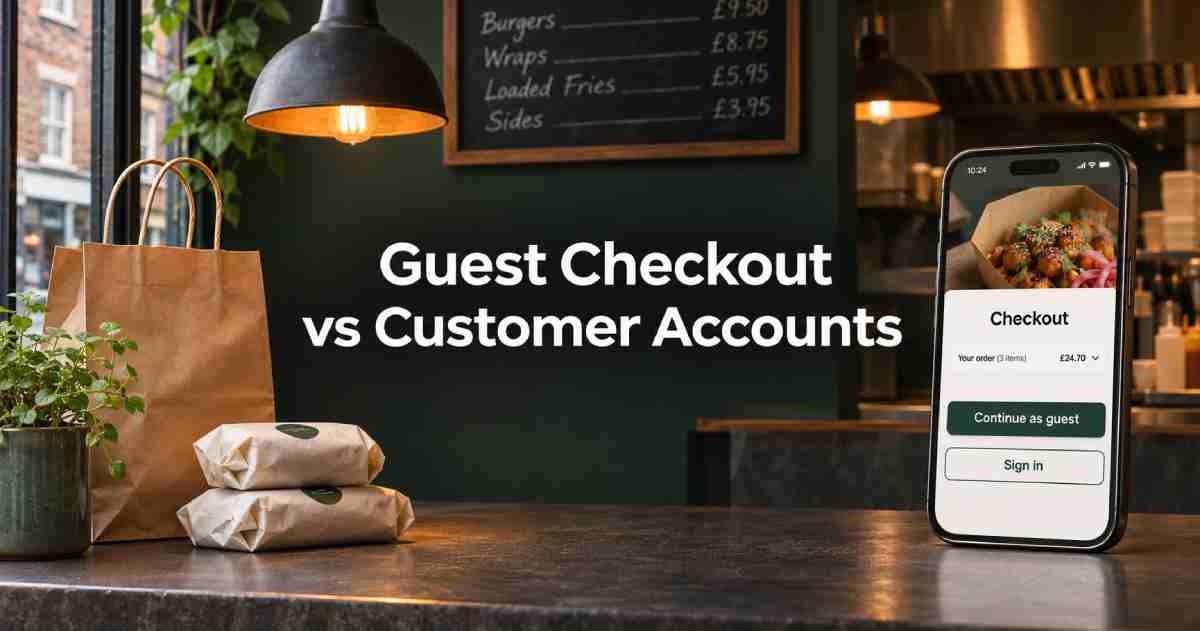
Offer guest checkout as the main option for first-time restaurant orders, and let regular customers sign in for benefits such as saved addresses, reordering or loyalty rewards. If your system supports it, invite guests to create an account after the order is confirmed. They can finish ordering dinner and decide whether an account is worth keeping for next time.
Picture two customers ordering from the same takeaway on Friday evening. One has just found the menu on Google and wants to collect a meal on the way home. The other orders delivery every week and wants to use their saved address. A checkout that serves both customers gives the first a clear guest option and the second an easy way to sign in.
Guest Checkout vs Customer Accounts at a Glance
Guest checkout lets someone place an order without registering or signing in. They still provide the details needed for that order, such as a name, contact information and a delivery address where applicable. A customer account gives the diner a profile they can return to. What the profile saves depends on the ordering platform.
What to compareGuest checkoutCustomer accountBest fitFirst-time diners, occasional customers and quick collection ordersRegular customers who use saved details, order history or rewardsBefore paymentEnter the details needed for this orderSign in and review available saved detailsAfter paymentUse the confirmation and order reference for helpUse the confirmation and, where available, view the order in the accountNext orderEnter the required details againReuse details or reorder where the platform supports itMain point to testWhether guests can find and complete checkout on mobileWhether sign-in and account recovery preserve the basket
The choice matters most at the point where a customer is ready to pay. Baymard Institute’s general e-commerce research found that 18% of surveyed US adults reported abandoning an order in the previous three months because they had to create an account. That figure comes from a US e-commerce survey. Use your own restaurant checkout data to see how diners respond.
When Guest Checkout Works Best
Guest checkout is a useful default when someone finds your menu through Google, a flyer or a link shared by a friend. The customer may be ordering from you for the first time and may need only their name and a way to receive the confirmation. Asking them to set a password adds another decision between choosing their food and placing the order.
Show Continue as guest clearly when customers start checkout. On mobile, check that the button is visible when the page first loads and after someone taps into the sign-in form. Baymard’s usability research found that shoppers can miss a guest option when it appears beneath more prominent sign-in controls.
Keep the form relevant to the order. For collection, ask for the information the team needs to identify the customer and send updates. For delivery, request the full delivery address and contact details your team needs. Where your system allows it, show fulfilment-specific fields once the customer chooses collection or delivery.
One detail deserves a test. If someone enters an email address that already belongs to an account, check whether they can still complete their guest order. A returning customer may use the same email and have no access to their password while ordering from a different phone.
When Customer Accounts Are Worth Offering
An account earns its place when it saves work on the next order. If a customer orders the same curry every Friday, an order history or reorder option has a clear purpose. If someone orders lunch to work and dinner to home, labelled addresses can save time and help them select the right destination.
Give customers a specific reason to sign in or register. Use benefits your system supports:
- Saved addresses: Choose home or work, then confirm the address for this order.
- Order history: Find a previous meal or look up an order reference.
- Reordering: Bring items from a previous order into the basket for review.
- Loyalty rewards: See an available balance or redeem rewards under your programme’s rules.
Test what happens when a customer reorders a meal that has changed. Prices, available toppings and meal-deal choices may differ from the original order. The customer should be able to review the current basket and make changes before paying.
For delivery orders, make the selected address easy to spot in the final summary, especially when the account holds more than one.
A Friday-night example
A customer orders two pizzas for collection on their first visit. They choose Continue as guest, select 7.15 pm and receive a confirmation with the collection time and order number. On the confirmation page, they see an optional invitation to create an account and find past orders more easily.
A week later, they sign in and reopen their last order. One topping is sold out, so they choose a replacement before paying. The account saves them from rebuilding the whole basket and still lets them check what they’re buying today.
How to Set Up Both Options
- Make guest checkout the primary action. Use a clear label such as Continue as guest. Put Sign in nearby so regulars can find it quickly.
- Keep the basket through sign-in and account recovery. Check that items, modifiers and fulfilment choices survive a sign-in attempt. Revalidate the collection slot and delivery details before payment if the customer returns from account recovery.
- Give guests a complete confirmation. Include the order reference, fulfilment method, restaurant contact details and the applicable collection time or delivery estimate.
- Invite customers to register after confirmation. Name one benefit they can use. Baymard’s checkout research supports moving optional account creation to the confirmation step.
- Check what happens to the guest order. If the invitation promises access to the order they just placed, verify that the platform can link it to the new account after confirming the customer’s identity. Use copy that matches the actual experience.
Example wording for a confirmation page, where order history and reordering are available:
Your order is confirmed Your order number is #1048. Collect at 7.15 pm from the front counter.
Create an account for next time View past orders and reorder your favourites when you’re ready.
Keep marketing choices separate
Treat a customer’s order confirmation and their choice to receive promotional offers as separate decisions. Creating an account by itself does not provide consent to send marketing emails or texts.
For UK customers, check the ICO’s guidance on consent and the conditions for using the soft opt-in for your own similar products or services. See theICO’s electronic mail marketing guidance.
Test the Checkout Before You Promote It
Start on a phone using a private browser window so you see what a new customer sees. Then run the same checks as a regular customer with a saved account.
Test orderWhat to checkFirst-time guest collectionGuest checkout is easy to find, and the confirmation shows the collection time and order referenceFirst-time guest deliveryCheckout collects the necessary address details and shows the selected address and total before paymentGuest uses an email already on fileThe checkout handles it clearly, and the customer can still find the guest route where supportedReturning customer forgets their passwordThe customer can recover access or switch to guest checkout with their basket intactSigned-in customer has two saved addressesThe intended delivery address appears in checkout and on the order confirmationCustomer reorders an unavailable itemThe basket identifies the change and lets the customer review the order before payingGuest accepts the post-order invitationThe order stays confirmed, and the account delivers the benefit described in the invitation
Run the tests on the website and app separately if you use both. Each channel may have a different checkout flow.
Measure Completed Orders and Repeat Use
Start with checkout completion rate. Divide completed orders by checkout starts and compare similar trading periods before and after the change. Break the figures down by website or app, device type and delivery or collection where you have enough data. A busy promotion or a payment outage can affect the figures, so record those changes alongside the results.
Then look at what customers do after ordering. Track confirmed guest orders, account sign-ups after confirmation and repeat orders where your reporting can identify them reliably. Take care when comparing account holders with guests.
Regular customers may choose to register because they already order frequently, and guest orders can be harder to recognise across visits. A higher repeat rate among account holders alone cannot establish what caused the difference.
Frequently Asked Questions
Q1: Should restaurants require customers to create an account before ordering?
For a public restaurant or takeaway website, start with guest checkout and optional sign-in. An account requirement may suit a members-only ordering service or a programme where customers need to verify eligibility. For standard delivery and collection, let diners decide whether the account benefits justify signing in.
Q2: Can guests receive an order confirmation without a customer account?
Yes, where guest checkout is supported. The system can send a confirmation using the contact details supplied for that order. Check that the confirmation contains the order number, collection time or delivery details, and a way to contact the restaurant.
Q3: Can guest checkout and loyalty rewards work together?
It depends on the platform and your reward rules. Some programmes need customers to sign in before earning or redeeming rewards. If your system allows a guest to claim points later, explain when and how they can do that. Test the process before promising it at checkout.
Q4: When should I ask guests to create an account?
The order confirmation page is a good place to invite guests to register. They have finished ordering and can decide whether features like order history or saved addresses will help next time. Keep their order number and collection or delivery details easy to find.
Give New and Returning Customers a Clear Route to Order
Put guest checkout where a first-time diner can find it, keep sign-in close by and explain what an account saves customers on a future order. Before launch, place two test orders on a phone. Complete one as a guest and one as a returning customer, then check the basket, payment and confirmation on both routes.
OrderApps offers branded ordering websites for delivery and collection and branded restaurant apps with built-in loyalty rewards. Ask the team to show how guest checkout, sign-in and order history work in the website or app configuration you’re considering. Explore theOrderApps online ordering system andrestaurant ordering apps.
Want to see both checkout journeys with your own menu?Book an OrderApps demo.
Ready to grow your food business?
Online ordering system, a branded restaurant ordering app, table booking and EPOS on one platform, with plans from £19/month.