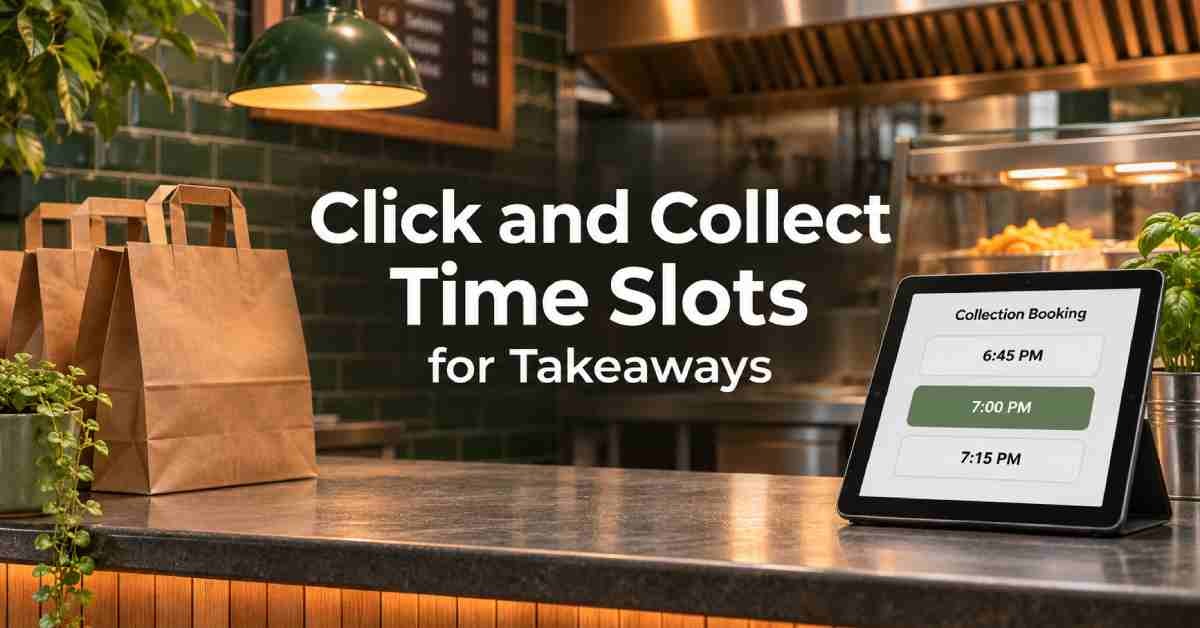
To set click and collect time slots for a takeaway, choose your collection hours, set a minimum preparation time and limit how many orders customers can book in each slot. Start with 15-minute slots as a trial. Use records from busy shifts to decide how many orders your kitchen and collection counter can handle in that time.
Picture a Friday at 6.30 pm. Six customers have booked collection for 7 pm, and your delivery orders are already filling the grill. The checkout offered everyone the same time because the shop was open. Your team now has to cook, check and hand over several orders at once.
A workable collection schedule accounts for the orders your team already handles. Here’s how to build one and test it before customers use it.
Set Your Collection Hours and Booking Rules
Start with the hours your team can hand over online orders. These may begin after the shop opens, once the kitchen is ready, and end before closing so staff have time to finish the final orders.
Decide when customers can place an order and how far ahead they can book. For example, you might allow customers to order at lunchtime for collection that evening, with the first slot available at 5.30 pm. Check that the team can see those pre-orders before service begins.
SettingWhat it controlsExampleCollection hoursWhen customers can pick up food5.30–9.45 pmSlot intervalHow far apart the available collection times areEvery 15 minutesMinimum lead timeHow much notice the kitchen gets before collection30 minutes during the dinner rushBooking windowHow far ahead customers can schedule an orderSame-day collectionSlot capacityHow many online collection orders can book the same timeThree orders per slot at peak
Check how your platform labels these settings. Some providers use separate fields for preparation time and advance booking notice. They may also offer scheduled closures and separate pickup hours.
Measure How Much Preparation Time You Need
Measure from the time an order reaches your team to the time the checked, packed bag is ready for handover. Include the wait before cooking begins, time at the busiest station, and final packing. Use a busy service with a normal mix of orders so the result reflects what customers can expect.
Suppose a Friday order waits eight minutes before cooking starts, takes 15 minutes to prepare and needs four minutes to check and pack. That’s 27 minutes from receipt to ready. A 30-minute minimum lead time would give this order a small buffer. Check several orders before applying that setting across your Friday schedule.
With 15-minute slots and a 30-minute lead time, an order placed at 6.42 pm reaches its earliest possible collection time at 7.12 pm. The first bookable slot would be 7.15 pm if it has space. If 7.15 pm is full, checkout should offer the next available time.
Large orders can change the calculation. One customer ordering eight pizzas may occupy the oven longer than three customers ordering one pizza each. If your system supports separate rules for large orders, test those rules. Otherwise, use a more conservative cap or tell customers how to arrange larger orders in advance.
Calculate How Many Orders to Accept Per Slot
Use the busiest part of your operation to set your limit. That might be the fryer, pizza oven, packing bench or collection counter. Check how many orders the team can get ready in a 15-minute period while maintaining its usual service standards.
Starting online collection cap = orders the team can get ready per slot − capacity for other channels − a buffer for variation
Worked example for a Friday dinner rush
A takeaway reviews several Friday services and estimates it can reliably get eight typical orders ready every 15 minutes during its busiest hour. The kitchen also serves delivery, phone and walk-in customers.
Capacity in a 15-minute slotOrdersTypical orders the team can get ready8Capacity reserved for delivery, phone and walk-in orders−4Buffer for larger baskets or delays−1Starting cap for online collection3
The takeaway opens three online collection bookings per slot from 6.30 to 7.30 pm. When 7 pm fills, customers can choose 7.15 pm if it still has space. The team reviews the cap after several comparable Fridays using actual ready times and customer waits.
Check how your system counts orders across channels. If the cap applies only to website or app orders, a phone booking may leave the online slot available. Give staff a way to see those bookings and adjust availability when the kitchen gets busy. Order-level caps also count a family feast and a single meal as one booking each, so review basket size alongside the number of orders.
Choose What Customers See at Checkout
Make the collection choice clear before payment. If you offer ASAP collection, show the current estimate. If you offer scheduled collection, let customers choose an available date and time. Use the same wording on the checkout page, order confirmation and staff order screen.
An example confirmation could read:
Collection confirmed for Friday at 7.15 pm Order #1048 Collect from the front counter and give your order number when you arrive.
If the customer books a window, give the full range, such as 7.15–7.30 pm. Use “ready from 7.15 pm” only if your team can work to that promise. For a delay, give a new expected time. A customer who knows the order will be ready at 7.25 pm can decide when to leave home.
Check how the kitchen sees future orders. An order placed at 2 pm for 7 pm should be visible for planning, with the collection time clear. Decide who checks upcoming bookings and when each order should enter the preparation queue.
Test the Full Collection Journey
Place a test order on a phone and follow it through to the kitchen and collection counter. If you take orders through both a website and app, test each one. Use a quiet period so staff can follow the order without interrupting service.
TestExpected resultOrder inside the minimum lead timeCheckout offers the first eligible slotFill the last space in a slotThe next customer can see and choose another available timeSelect a slot that fills before paymentCheckout prompts the customer to choose an available timeBook for later in the dayThe confirmation and staff order show the same date and timeChoose the final slot of the eveningThe team can prepare, pack and hand over the order before closingCheck a planned closure or bank holidayUnavailable times are closed to bookingCancel a scheduled orderStaff can see the cancellation and know whether the space becomes bookable againSwitch from delivery to collectionCheckout shows the applicable collection times and order total
Repeat the tests after changing hours, lead times or capacity. A late-opening bank holiday or a temporary kitchen closure can affect the times customers see even if the usual weekly schedule works correctly.
Adjust Slots Using Actual Ready Times
Record the booked time, the time the sealed order is ready and the handover time. These three figures help you see whether the kitchen is running late or bags are ready but customers are queuing at the counter.
If the first slot is consistently late, check when the team sees and starts its earliest orders. If later slots fall behind after a strong start, review the cap and the volume coming from delivery, phone and walk-in orders. If bags are ready on time but the queue grows, give one staff member responsibility for checking order numbers and handing over bags during the busiest period.
Review a few comparable shifts before changing your settings. When possible, adjust one variable at a time. That makes it easier to see whether a longer lead time, lower cap or change at the counter improved collection.
Frequently Asked Questions
Q1: How long should click and collect time slots be for a takeaway?
Try 15-minute intervals and measure how many orders your kitchen can prepare and your team can hand over within each interval. Ten-minute slots may suit a quick menu with predictable prep times. Longer intervals can suit a kitchen that prepares orders in batches, provided the cap still prevents too many customers arriving together.
Q2: What is the difference between a collection slot and lead time?
A collection slot tells the customer when to arrive. Lead time is the minimum notice your team needs to make the order ready. For example, with 30 minutes of lead time and collection slots every 15 minutes, someone ordering at 6.42 pm could choose 7.15 pm if space is available.
Q3: What happens when a takeaway collection slot is full?
The customer should be able to choose another available time. Test what happens when someone selects the last place in a slot and another customer books it before they complete payment. Check that the checkout clearly asks them to choose a new time if their original selection is no longer available.
Q4: Can I accept collection pre-orders while my takeaway is closed?
Yes, if your ordering platform supports advance orders outside trading hours. Customers can place an order while the shop is closed and choose an eligible time after it opens. Check that the earliest collection slot gives your team enough time to prepare the food.
Q5: Should collection and delivery have separate time slots?
Use separate customer-facing schedules when collection and delivery have different timings. Plan their capacity together when they share the same kitchen. For example, a 7 pm collection and a 7 pm delivery may both need time on the grill, even if the delivery order leaves the shop earlier.
Set Up Scheduled Collection With OrderApps
Start with one busy service, a lead time drawn from your order records and a cap your team can handle alongside delivery and walk-in demand. Check the first and last bookable times, then run a test order from checkout to handover.
OrderApps supports direct collection and scheduled orders through its branded online ordering platform. During setup, ask how your chosen configuration handles slot intervals, order caps and orders from other channels. See theOrderApps online ordering system.
Planning your Friday collection schedule? Bring your opening hours, prep times and typical peak order volumes to anOrderApps demo.
Ready to grow your food business?
Online ordering system, a branded restaurant ordering app, table booking and EPOS on one platform, with plans from £19/month.