Choose QR codes for a low-cost start, or add NFC so guests can tap without opening their camera. For most UK restaurants introducing order and pay at the table, a QR code on every table is a practical starting point. Add NFC where a second way to open the menu would help guests.
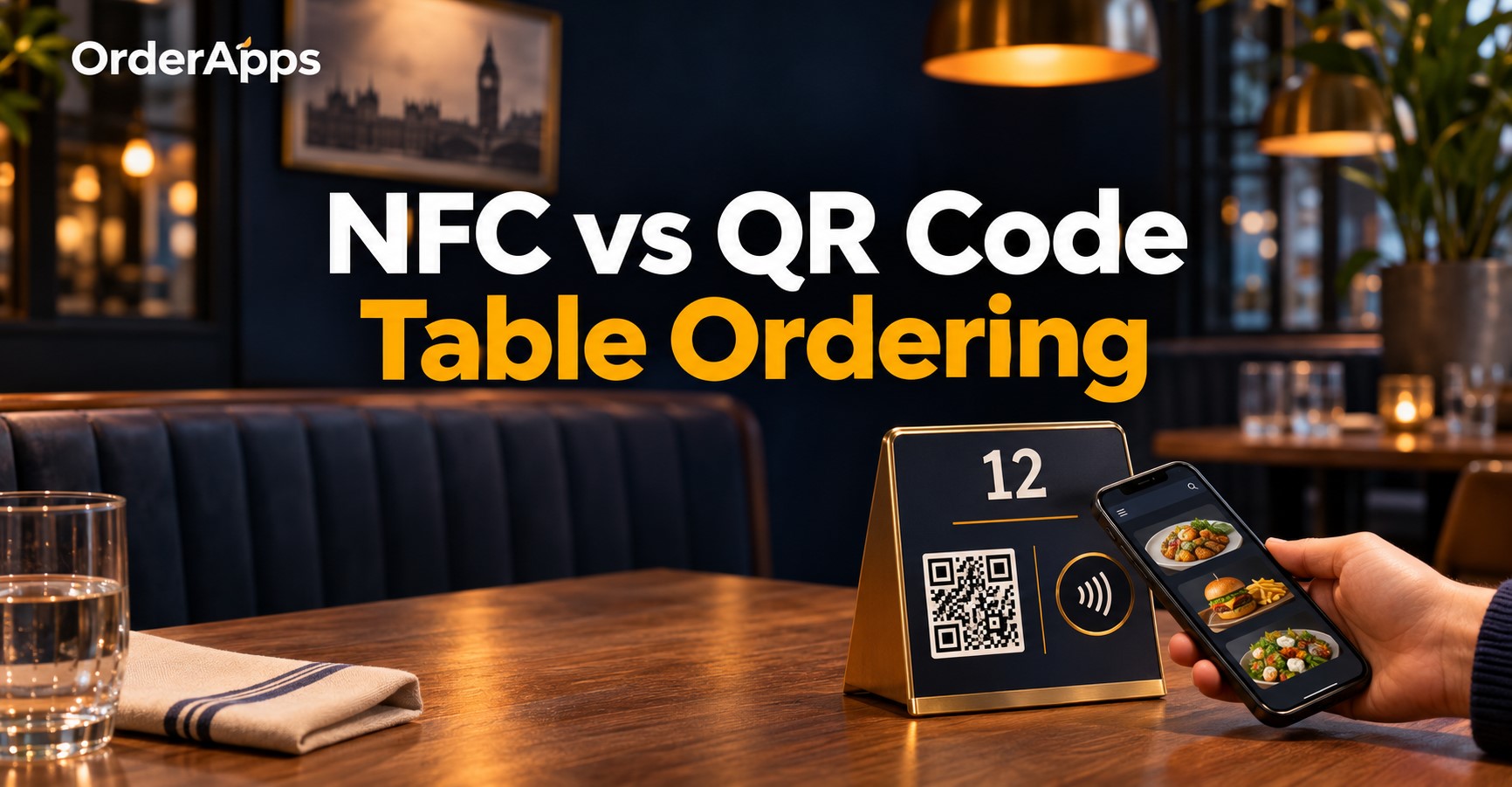
Picture a busy pub garden. Two guests sit at Table 12 and want another round. One points their camera at the QR code. The other holds their phone near the NFC tag. Both open the same menu and see Table 12 before ordering.
That table number matters as much as the scan or tap. Your guest needs to know the drinks will reach the right seat. Your team needs to see where to take them.
NFC vs QR Code Table Ordering
QR code table ordering uses a printed code that guests scan with their phone camera or a QR scanner. NFC table ordering uses a small tag that a compatible phone can read at close range. Both can open the same browser-based order and pay page.
What to compareQR code table orderingNFC table orderingHow guests startPoint the camera at the code and open the linkHold a compatible phone near the tag and follow the promptWhat goes on the tablePrinted code on a card, sticker or standNFC tag in a sticker, disc or standSetup workGenerate, label, print and test each codeAssign, label and test each tagWhen guests may need helpGlare, poor lighting or a damaged codePhone compatibility, settings or difficulty finding the tap pointWhat happens nextBrowser opens the table’s ordering pageBrowser can open the same ordering pagePhysical replacementReprint or replace the signReplace the tag and check its table link
The visible sign makes a difference. A guest can see where to point their camera at a QR code. An NFC tag may be hidden inside the stand, so mark the exact spot where guests should hold their phone.
If both methods open the same page, menu speed, item selection and checkout work the same way. Compare how easily guests reach that page before investing in a different sign.
What Does Table Ordering Cost?
Budget for the ordering software, any applicable order or payment charges, the table signs and the time needed to set them up. QR codes can start with printed cards. NFC adds a physical tag and a check that each tag opens the correct table link.
A 20-table budget example
The figures below are illustrative budget inputs. Replace them with written quotes for your venue. The example compares the physical setup only.
SetupAssumed cost per table20 tables2 sparesSignage budgetPrinted QR sign£2£40£4£44Combined QR and NFC sign£6£120£12£132
Under these assumptions, adding NFC to every sign costs £88 more upfront. A smaller trial keeps the initial spend down. For example, ten QR-only signs and ten combined signs would cost £80 before spares.
Ask your supplier whether their hardware quote includes printing, programming and delivery. Then allow your own staff time to place, test and replace signs. If a quote bundles signs with software, check what replacement signs cost after launch.
Check the monthly and per-order costs
OrderApps lists QR and NFC ordering together on its Premium plan at £39.99 per month. The pricing page also lists a 1.49% per-order transaction charge. Confirm which orders it applies to, any other applicable payment charges, and whether your quote includes physical signs.
For a comparison between providers, ask for the full cost at your expected order volume. A quote based on 100 monthly table orders may look different at 1,000.See OrderApps plans and pricing.
What Do Guests Experience?
Guests using QR scan a visible code. Guests using NFC hold their phone near a marked tap point. The experience after opening the link depends on the ordering page, the guest’s connection and how clearly you identify their table.
Follow an order from Table 12
Imagine the guest scans the code. Their phone offers a link, and the page opens with Table 12 at the top. They add two drinks, confirm their order and see whether payment went through.
At the same table, another guest tries NFC. Their phone shows a prompt, which they tap to open the menu. They arrive at the same Table 12 page.
The useful test is what happens at the bar. Can staff identify the table without asking who ordered? Can the guest tell when the order is confirmed? Those details affect the experience whichever sign the guest uses.
Check phones, lighting and signal
Apple documents background NFC tag reading on iPhone XS and later, with conditions that can affect when it works. Android tag reading depends on compatible hardware and device behaviour. Test several phones you expect guests to use, including one that cannot read an NFC tag.
Check QR codes under the light customers actually sit in. A glossy sign that scans easily by the till may reflect a pendant light at the table. Both methods can open a link, but the guest still needs a working connection to load the menu and complete an online order.
Give staff a simple response when a guest needs help: “You can scan here, or I can take your order.” Print that option on the sign if it suits your service.
How to Set Up Table Ordering
Start with a table map and a verified ordering link for every location you serve. Test the entire journey through to the kitchen or bar before placing signs across the venue.
- Number your tables. Include the terrace, garden and any movable tables. Match the numbers guests see to the numbers staff use.
- Assign the links. Point each table’s QR code and NFC tag to the same table-specific ordering page.
- Label the sign. Show the table number and a short instruction such as “Scan or tap to order.”
- Test at the table. Open the QR and NFC links independently on representative phones. Confirm the displayed table number.
- Place a test order. Check the guest confirmation, payment result and the order your team receives.
- Test a second round. Ask someone to order again and check whether staff can handle the additional ticket during service.
- Plan for replacements. Keep a record of each table’s link. Test a replacement sign before placing it back in service.
Check these four points before launch
CheckWhat you should seeLink destinationBoth routes open your branded ordering pageTable identityThe guest and staff see the correct table numberOrder confirmationThe guest knows whether the order was placed and paidStaff handoverThe kitchen or bar receives enough information to fulfil the order
OrderApps says its table ordering system sends orders with the table number attached and supports scanning or tapping without an app download.Explore QR and NFC table ordering with OrderApps.
Which Option Suits Your Venue?
Choose by looking at where guests wait, how your staff serve, and how often you need to replace signs. A small pilot can show where the second option is worth adding.
Venue or service styleStarting setupWhat to testCafé with counter and table servicePrinted QR codes on selected tablesCan guests see when to order from their seat?Pub garden or terraceDurable QR signs, with NFC on selected tablesCan customers order a second round with the available signal?Casual dining restaurantQR and NFC on one sign where usefulCan servers still explain specials and help with requests?Restaurant with full table serviceStaff take the main order, with digital ordering where it fitsDo guests use it for repeat drinks or extras?
Try four comparable tables over several busy services. Give two tables QR-only signs and two combined signs, then swap the signs halfway through. Record failed attempts, requests for staff help and completed digital orders. Keep the menu and checkout the same so you can compare the signs.
If guests reach the menu easily but stop at payment, improve that part of the journey first. If they regularly struggle to open it, check the sign, the tap point and the connection before expanding the rollout.
Start With a Setup You Can Test
Begin with clearly numbered QR signs on a few tables. Add NFC where you want to offer a camera-free route, and keep both links pointed at the same menu. Then follow one live test order all the way from the guest’s phone to the correct table.
Want to see how that works with your menu and floor plan?Book a free OrderApps demo.
Frequently Asked Questions
Is NFC better than a QR code for restaurant ordering?
NFC is useful when guests want to open the menu without using a camera and have a compatible phone. QR codes are easy to print, replace and demonstrate. A combined sign gives guests both routes to the same menu and lets your staff help when needed.
Can one table sign have both NFC and a QR code?
Yes. A single sign can contain a printed QR code and an NFC tag. Both can open the same table-specific ordering page. Label the scan and tap areas clearly. Test each route using separate phones and check that both identify the same table at checkout.
Do customers need an app to order at the table?
Guests can order without installing an app when the QR code or NFC tag opens a browser-based order and pay page. The phone still needs to read the code or tag and load the page. OrderApps supports both browser-based entry methods on its table ordering system.
Can NFC table ordering work without Wi-Fi?
A phone may read an NFC tag without Wi-Fi, but the browser still needs a connection to load an online menu and submit an order. Mobile data can provide that connection where coverage is adequate. Test the weakest areas in your venue, especially outdoor seating and basements.
Does tapping an NFC tag automatically take payment?
An NFC tag programmed with a menu link opens the ordering journey. The guest still chooses their items and completes the payment steps shown at checkout. Make that distinction clear on the sign. “Tap to open the menu” describes what the first tap does.
Will I need new signs every time I change the menu?
You can keep the same signs when the QR code and NFC tag point to a stable table link and you update the menu behind that link. If the URL changes, check whether the old link redirects correctly. Replace or reprogram signs where needed, then test a complete order.
Ready to grow your food business?
Online ordering system, a branded restaurant ordering app, table booking and EPOS on one platform, with plans from £19/month.