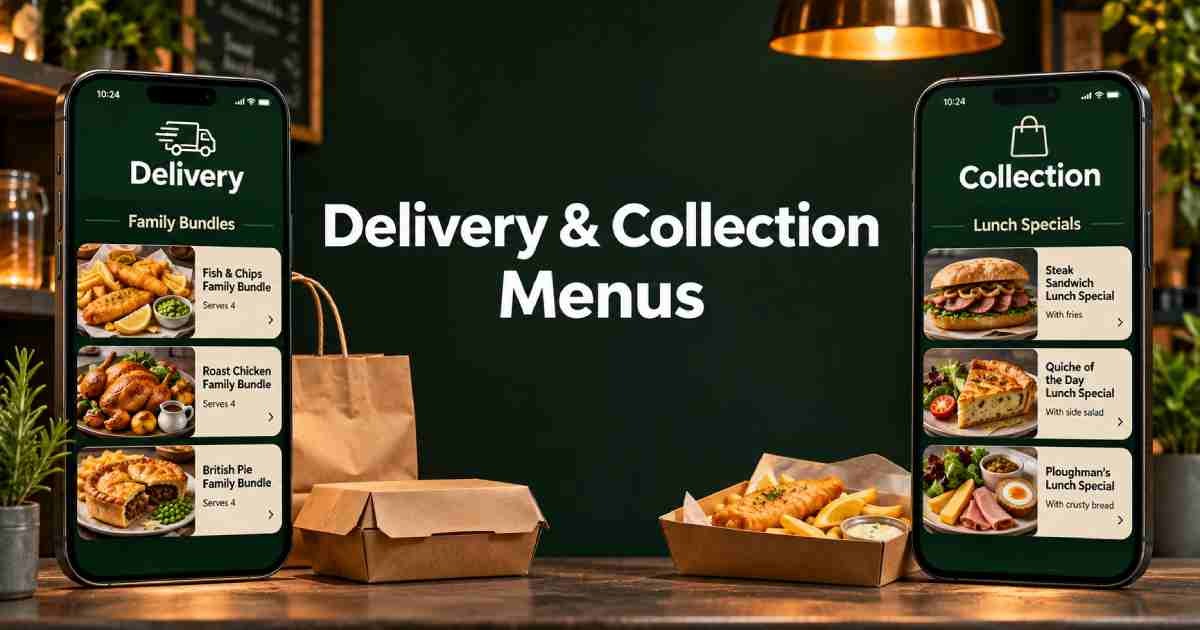
To show different menus for delivery and collection, let customers choose how they want to receive their food, then show the items, options and prices available for that order type. Use one menu with item-level availability if only a few dishes differ. Set up separate menus if delivery and collection have different categories, bundles or prices and your system supports that setup.
Before launch, add a collection-only item to a basket and switch to delivery. The checkout should explain which item is unavailable and give the customer a chance to review the updated basket before paying.
Choose Between One Menu and Two Menus
Start with a list of what actually changes. If customers can order most of the same food either way, one menu is usually easier to maintain. If your delivery menu has different meal deals, portion sizes and pricing across several categories, separate menus may be easier to browse.
What differs?Setup to look forExampleA few itemsItem availability by order typeShow loaded fries for collection onlyA whole categoryCategory availability by order type, where supportedShow all collection bundles under one categoryToppings or side choicesAvailability by order type for item options, or separate item versionsOffer a fresh side with collection and a sealed side with deliveryMost categories, bundles or pricesSeparate menus assigned to delivery and collectionShow a shorter delivery menu with bundles designed for transportOnly fees, minimum spend or hoursOne shared menu with separate fulfilment settingsOffer the same pizzas with a delivery minimum and different collection hours
Ask your provider to demonstrate the difference between order-type controls and sales-channel controls. A rule that hides an item on your app may still show it on your website.
A rule that hides an item for delivery should apply to delivery orders on each channel you use. Platform controls vary, and some providers document menu and pricing rules tied to particular storefronts or ordering channels.
Decide What Belongs on Each Menu
Review your current menu against three questions:
- Does the dish travel well?
Test it in the packaging you use and check its condition after a typical delivery journey. A dish that loses its texture in transit may work better for collection.
- Can staff pack it consistently during a rush?
An item with several containers or last-minute toppings takes additional time. Check whether the extra packing works alongside your normal delivery queue.
- Can the kitchen fulfil the same options for both order types?
If a main dish is available for both, review its modifiers too. Customers should see the correct sides, extras and substitutions for the order they are placing.
A chip shop might use the following setup as a starting point:
Menu itemCollectionDeliveryReasonCod and chipsAvailableAvailableThe shop has tested its standard packaging on typical routesLoaded chips with fresh toppingsAvailableUnavailableThe toppings lost texture during transport testsCollection lunch dealAvailable at lunchUnavailableThe offer is designed for counter handoverFamily fish supperAvailableAvailableThe shop can pack and portion the same bundle for both
Check the availability of any item used inside a meal deal. A side removed from the delivery menu may still be selectable within a delivery bundle if the platform applies separate rules to item options.
Configure the Delivery and Collection Menus
Open your ordering system and look for controls labelled order type, fulfilment, menu availability or menu assignment. Names vary by provider. If you use a website and an app, check whether they share the same configuration.
If you’re using one menu
Keep shared dishes available for both order types. Apply collection-only or delivery-only rules to the exceptions. If a whole category should be restricted, check whether that rule also covers its items when customers find them through search, recommendations or past orders.
For example, if Loaded Chips become collection only, check whether customers can still add them through a burger meal deal set up for delivery.
If you’re using separate menus
Assign one menu to Delivery and one to Collection. Reuse shared item records if the platform supports it. That makes a price change or sold-out update easier to apply across both menus. If the system needs separate copies, record which items appear in both places and who updates them.
For businesses with more than one branch, check which menu applies after a customer changes the collection location or enters a new delivery address. Some ordering systems use the delivery address or collection selection to decide which store serves the order.
Check Prices, Options and Allergen Information
Review each menu as a customer would. Check the item price on the menu, any charge for extras and the total in the basket. If you charge different prices for delivery and collection, those prices should follow the selected order type all the way through checkout.
Say a burger costs £9 for collection and £10 for delivery. The customer adds it while browsing collection, then switches to delivery. If the burger is still available, the basket should show the new price and make the change clear before payment.
If you duplicate an item or create a delivery-specific version, check the ingredients and allergen information for that version. A different sauce, bun or side can change what customers need to know. The Food Standards Agency says allergen information for food ordered online or by phone must be available before purchase and at delivery. See theFood Standards Agency’s allergen guidance for food businesses.
Recheck the Basket When Customers Switch Order Type
Keep the active choice visible above the menu and in the basket. Use labels customers recognise, such as Delivery and Collection. If someone changes their choice, the system should recheck the items, meal-deal options, discounts and prices against the new menu.
Here’s what that looks like in practice. A customer adds two burgers and a collection-only lunch deal, then switches to delivery. The burgers can stay in the basket if both are eligible. The lunch deal needs a clear message so the customer can choose what to do next.
The Lunch Deal is available for collection only. Switch back to collection to keep it, or remove it to continue with delivery.
Give the customer a chance to review each change. If an option is unavailable, let them choose an eligible replacement. Recheck any delivery minimum or collection time that changes with the order type. For help setting those thresholds, see theOrderApps guide to takeaway minimum order values.
5. Test Both Menus Before Going Live
Start on a phone in a private browser window so you see what a first-time customer sees. If you offer ordering through an app, repeat the tests there. Complete one delivery order and one collection order, then check what arrived on the staff screen or kitchen ticket.
TestExpected resultBrowse as a delivery customerOnly eligible items and options can be orderedSwitch a collection basket to deliveryThe checkout explains unavailable items and shows any price changesReopen an old order with a restricted itemThe system checks current availability before accepting the orderMark a shared item sold outBoth menus reflect the change if the same kitchen supplies bothAdd a meal deal with a restricted sideThe basket offers eligible choices for the selected order typeSwitch branch or delivery addressThe menu reflects the branch that will prepare the orderSchedule an order for laterAny time-specific menu rules match the chosen fulfilment timeCheck a completed order at the tillStaff can see the order type, item options, price and any collection or delivery details
Give one person responsibility for checking both menus after a price change, recipe update or new promotion. Even when menus share item records, it’s worth confirming that each route still shows the intended options.
Frequently Asked Questions
Q1: Can I make one menu item collection only?
Yes, if your ordering system supports item availability by fulfilment method. Set the item to appear for collection, then check the delivery menu, any bundles that contain it and any reorder shortcuts. This helps you catch other ways the item could still reach a delivery basket.
Q2: Do I need two menus to offer a collection-only deal?
A shared menu can work if your platform can restrict the deal to collection. If you’re using a discount code or automatic promotion, check whether the discount itself can be restricted. Test the basket after switching from collection to delivery.
Q3: Can delivery and collection have different item prices?
Some platforms support different prices through order-type settings or separate menus. Check that the price follows the selected order type from browsing through payment. When a customer switches, show any price changes and the updated total before they confirm the order.
Q4: Can I have different delivery and collection hours with the same menu?
Yes, where the platform supports separate fulfilment hours. You can share the same food menu and offer collection during a longer window than delivery. Test immediate and scheduled orders near the opening and closing times for each service.
Q5: How do I keep two menus in sync?
Use shared item records for common dishes where your platform allows it. If you need separate copies, keep a list of shared items and check both menus whenever you change a price, recipe, modifier or stock status.
Set Up Menus Your Team Can Maintain
Start with one shared menu if only a handful of dishes or deals differ. Use separate menus when customers need a substantially different selection. Whichever setup you choose, test what happens when a customer changes order type halfway through checkout.
OrderApps provides a branded ordering website for delivery and collection, with menu, pricing and order management. During a demo, ask the team to show which order-type controls are available for your setup, including any rules you need for categories, modifiers or prices. See theOrderApps online ordering system.
Bring one shared dish, one collection-only deal and one delivery bundle to afree OrderApps demo. Use them to check how your customers would browse, switch order type and place an order.
Ready to grow your food business?
Online ordering system, a branded restaurant ordering app, table booking and EPOS on one platform, with plans from £19/month.